Visualizing Changes in Stock Data Using Google Sheets

We imported stock data using the GOOGLEFINANCE function in our previous post; now we’re creating visuals with that data. The historical stock prices and changes in those stock prices are shown in this table.
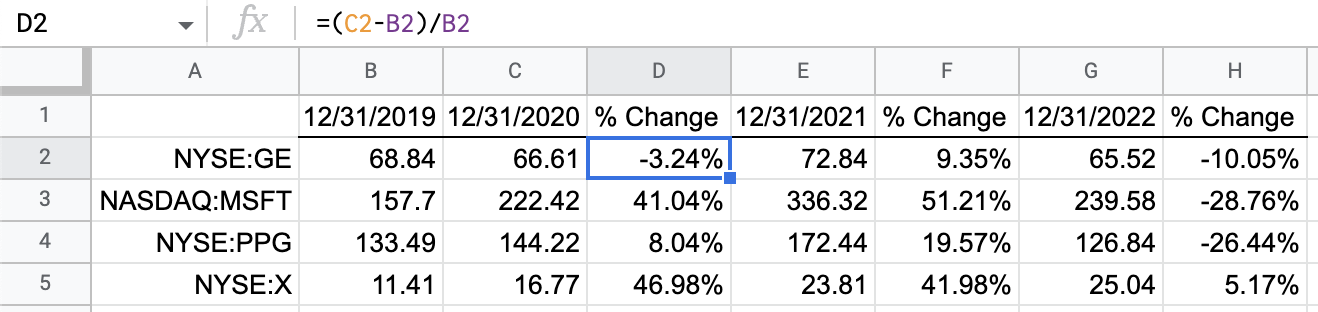
Formula showing year over year change
Stock Data From Google Finance

As we are only interested in the change over time, let’s clean up this table a bit. We’ll delete the stock prices and keep the percentages of change. Before you delete the prices, copy the percentages and paste thems as values. That way, the percentages will no longer rely on the formulas being deleted.
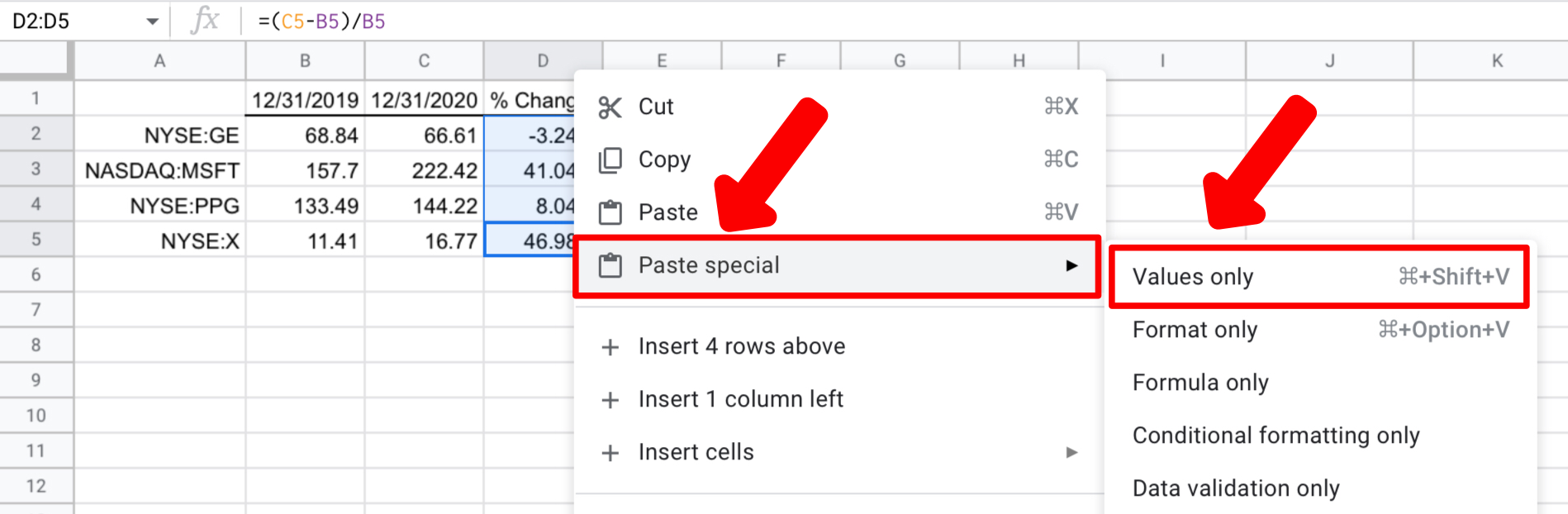
The paste special menu
Pasting the Cell Contents as Values

Now you can safely delete the columns with the stock prices. Our data is cleaned up and ready to go.

Just the percentages
Cleaned Table with Just the Percentages

Using a Chart to Visualize Stock Data

The obvious tool to visualize changes is a chart. You can create a chart using the Insert menu, but we’ll choose the easy way. Google Sheets has a tool called Explore. This tool anticipates the most useful graphical insights and offers them in a sidebar. You can pick from the options and insert them into your spreadsheet. Using Explore will significantly reduce the steps needed to create a chart. First, we’ll highlight the range we want, including the headers, then click the Explore button.

Using the Explore button

Let’s use this chart suggested by the Explore tool. It helps us see the changes in share price over time for each of the four stocks. Insert this chart by dragging it with your mouse into the spreadsheet. Now let’s look at another method to see the data.
Chart Showing Stock Price Flucuations

Custom Formatting to Show Changes

We are familiar with charts but can also illustrate change through custom number formatting. One advantage of custom formatting is that it sits inside the cells. This allows the illustration to be contained within the data. Also, custom formatting scales better as it can be used in as many rows as needed when a chart gets too busy with lots of data.

First, let’s highlight the cells to be formatted then go to the Format menu, choose Number, then Custom number format. This brings up the Custom formatting options.

Custom number formatting menu option
Custom Formatting Menu

Once you choose Custom number format, you will get another window. This window is where we tell Google Sheets how to format numbers when negative and positive. Since we can differentiate, we can make the formats look different depending on the direction of change – negative for down and positive for up.

List of pre-defined custom number formats
Predefined Number Formats

Custom Formatting Syntax

Let’s use the input box of the Custom number formats window to create a new custom number formatting rule. We will start with the basics.

Input
0; -0; “-”

Output
Formats a positive number as 0

Formats a negative number as -0

Shows zero as a dash (“-“).

Add Color to Custom Number Formatting

As stated earlier, you can add colors to your numbers for easy understanding.

To achieve customized color for your data, type the following syntax:

0[Green]; -0[Red]; ‘-‘[Black]

NOTE: The name of the color for each number format will come after each of the numbers in parentheses. Make sure you enclose the color for each cell in square brackets. The name for positive numbers is GREEN.  Negative numbers are assigned RED. Zero will appear in BLACK.

How to Insert Special Characters in Your Data in Google Sheets

We’ll add arrows to the formatting to emphasize the direction of change. However, there is no built-in option to insert special characters.

To achieve this

  • Go to the Google Workspace Marketplace and grab a copy of the Insert Special Characters Add-On.
  • Install the add-on and use the new sidebar to select and insert the characters.

Use these triangles in the custom format rules with a triangle pointing up to show and increase and down to show a decrease.


Insert Special Characters Add On

Completed custom number format with colors and triangle arrows
Completed Custom Number Formats

Now apply the completed rules to the table of percentages. You can see the trends more clearly now with the help of colors and arrows.

Custom Formatted Percentages

In conclusion, the techniques shown in the article will help you tell the story of your data in the most compelling way possible.

Creating a Stock Tracker in Google Sheets

Let’s build a lightweight stock tracker in Google Sheets using the GOOGLEFINANCE function. The GOOGLEFINANCE function brings current and historical securities data into Google Sheets, eliminating the need to use connections to outside financial services.

There are plenty of complicated stock trackers, but that’s not what this is. It’s a learning tool. We’re building this tracker to learn about the GOOGLEFINANCE function, special characters, and charts. So, let’s get started!

You have $50,000 to invest, and you want to find some stocks for a long-term investment.

Retrieving Current Stock Data with GOOGLEFINANCE

Let’s start with retrieving current data, and we’ll use four well-known stocks for the comparison – General Electric, Microsoft, PPG, and US Steel. We’ll build a table with these ticker symbols as the rows and price, price-to-earnings (pe), and beta as the column headers. Although it’s not required, the function prefers we prepend the ticker symbols with their stock exchange to be more precise. Therefore, GE will become NYSE:GE and MSFT will be NASDAQ:MSFT, etc.

spreadsheet table with ticker symbols and attributes

Retrieving Stock Price with GOOGLEFINANCE

Column B will be the security’s current price. Before we write the formula in this column, let’s examine its syntax.

=GOOGLEFINANCE(ticker symbol, [attribute], [start_date], [end_date|num_days], [interval])

As you can see, the only required argument is the ticker symbol. Using just the ticker symbol will retrieve the current price. Let’s do that for this first column of stock data. Since we have the securities listed in A2:A5, we can reference those in the formulas. In cell B2, we’ll use the sytnax of =GOOGLEFINANCE($A2).

Retrieving the price of GE with the GOOGLEFINANCE function

Notice the $ before the A in the cell reference. This fixes the reference to column A. When we drag the formulas to the right for the other attributes, the column reference won’t change.

Drag the formula in B2 down through B5. Now we have our stock prices.

Copying the formula down

Retrieving the P/E Ratio with GOOGLEFINANCE

Next, let’s look up the price-to-earnings ratio. The price-to-earnings ratio is a good measure of a company’s relative profitability. In the previous example, the only input for the GOOGLEFINANCE function was the stock exchange and ticker symbol. Now we need to specify the attribute of “pe” in column C. Let’s do this using a cell reference.

Drag the formula from cell B2 into C2 and you’ll get this: =GOOGLEFINANCE($A2). This fixed cell reference worked; otherwise, the cell reference would have been B2. Now, we need to add the attribute of pe. We’ll do that by referencing cell C1 and fixing the row number with a $ so it can be copied down without changing.

The completed formula for GE’s pe is =GOOGLEFINANCE($A2,C$1).

Looking up the price to earnings ration of GE stock
Price-to-earnings Formula

If you’re observant, you’ll notice the result is an error. This is because GE has not had positive earnings recently (it’s now early 2023); therefore, there are no earnings for the calculation. However, we see results when we copy the formula down for the other ticker symbols.

Dragging the formula down

That covers the price-to-earnings ratio. Let’s move on to our next attribute.

Retrieving Beta with GOOGLEFINANCE

Let’s repeat the process for the beta attribute. A stock’s beta is a measure of its volatility.

The formula for GE’s beta is – =GOOGLEFINANCE($A2,D$1).
Because we fixed the column reference for the ticker symbol and the row reference for the attribute, we can complete these formulas without typing.

Completing the Table

After dragging the formulas down and over, we have a completed table of current stock data.

Complete table with ticker symbols, price, price-to-earnings, and beta.
Completed Table of Current Stock Data

Retrieving Hisotrical Stock Data with GOOGLEFINANCE

Now let’s take a look at the historical data that’s available.

If I picked individual stocks myself, which I don’t, I would be most interested in historical performance measures. Items such as historical price-to-earnings, return-on-assets, and profit margin percentage would be a good place to start. However, the historical data for stocks is limited to share price data. Let’s make the most with what we have.

We will look at share price over time, then visualize it with a chart and custom number formatting. Let’s start with a basic grid to hold our data.

Empty grid ready for stock data
Basic Grid Ready for Data

Since we discussed the basics of the GOOGLEFINANCE function previously, we’ll skip that part and jump into what’s different this time.

Formula to be used in cell B2: =INDEX(GOOGLEFINANCE($A2,"close",B$1),2,2)

There are a few new things about this formula. The first is the addition of the start_date, which is the cell reference B$1. The function needs a start_date when retrieving historical data.

The second change is that the attribute is typed directly into the formula instead of retrieved with a cell reference. We are using close this time, which is the closing stock price on the given start_date.

The third addition to the formula is a function called INDEX. INDEX fetches and returns part of an array. The function is needed here because GOOGLEFINANCE returns four cells of data when retrieving a historical stock price. We’ll trim these four cells down to one. The INDEX function needs the row and column numbers, which in this case are 2 and 2.

Array of results from the GOOGLEFINANCE function
Four Cells of Data Before Using INDEX

After using the INDEX function, we have only stock price, which is the result from the second column and second row of the output from the GOOGLEFINANCE function.

Using INDEX to grab only one cell
Just the Stock Price

Conclusion of Setting Up Data

Now that we know how to build each formula, we’ll paste them into the empty grid.

A table of historical stock prices
Table with Historical Stock Prices

Each year’s closing price is helpful, but it’s the year-over-year change in that price that we’re after. We’ll do some simple arithmetic in each “% change” cell so show how much each stock price rose or fell.

Formula showing year over year change
Table with Completed Formulas

Year over year change formula in cell D2 – =(C2-B2)/B2

Now we have all the data we need to create visualizations to help us understand the data. We’ll dive into these graphs and special characters in this next post.

Extract numbers from Text in Google Sheets

In your Google Sheets workflow, it may sometimes be necessary to extract numbers from cells that contain a combination of both text and numbers. Perhaps you want to get the numbers to do further analysis, such as creating Pivot Tables. We can use various formulas for various unique situations. Let’s look at these formulas and a workaround that can save us a lot of time and effort.

Extracting numbers from text using the SPLIT function

The standard syntax for the SPLIT function is =SPLIT(text, delimiter). The delimiter tells the formula for how to separate the string. For instance, if we had a list of first names and second names separated by a comma, we can use the following formula to separate the names into separate cells: =SPLIT(text, ","). The comma is the delimiter in this case.

Extracting numbers from text into separate columns using the SPLIT function


We can apply a similar concept to separate numbers that appear together with text in the same cell. How? By setting the delimiter to all characters that are not numbers. If we swap out the comma used in the previous example with the string, “qwertyuiopasdfghjklzxcvbnm, we are telling the formula to separate anything that isn’t in the domain of the mentioned string. Let’s see this in practice.


The results of the SPLIT function showing numbers being extracted from text


This only excluded letters of the alphabet from the output, and this is because the delimiter we specified only covers that scope. If we wanted brackets and colons excluded as well, we could add them to the delimiter. This separates the digits appearing before and after the character in question into different cells.


Extracting numbers from text using the REGEXREPLACE function

Another way we can extract numbers from a cell containing an assortment of numbers and text is using the REGEXREPLACE function. This function extracts all digits from a string and places them in one cell. The exact syntax used is =VALUE(REGEXREPLACE(text,"[^[:digit:]]",""))


Numbers extracted using the REGEXREPLACE formula


One thing to note here is that REGEXREPLACE ignores any non-digit characters that appear between the numbers and merges the numbers in one cell. This returns the value of “0” if the text does not contain any numbers. If the string contains a pure number, the formula will return a VALUE error because it hasn’t found any non-digits to replace.

Using the REGEXEXTRACT function

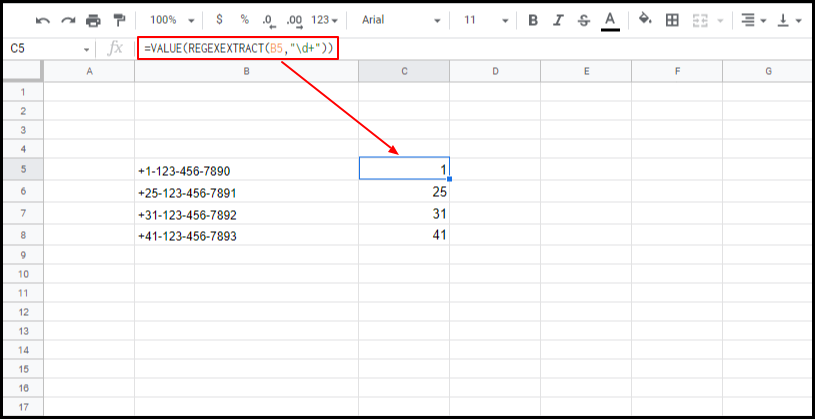
Instead of trying to extract all the numbers that occur within a string, we may be interested in just the first instance of digits that appear next to each other. For example, we could have a list of international telephone numbers that generally appear in the following format (+country dialing code)-(rest of the number. To extract the country prefix, we could use REGEXEXTRACT. The syntax would be =VALUE(REGEXEXTRACT(text,"\d+")).


Numbers extracted using the REGEXEXTRACT function


These three ways to extract numbers from text are helpful in some ways, but they more or less are lacking in some capacity. In addition to that, if you’re not an avid spreadsheet user, things can get confusing and complicated for you at times. We can make things easier by using a Google Sheets add-on known as Power Tools.

Extracting numbers from text using Power Tools add-on

Make sure to install Power tools before getting started. After installation, launch it via Add-ons > Power Tools.

On the sidebar that appears on the right, click on “Text” and then “Extract” and “Extract numbers”. Clicking on these options opens up an array of options for extracting numbers from our text.
 

Menu of functions available from Power Tools

 
What do the various options offer when extracting the numbers? Let’s explore them:

  • If you specify that your numbers have decimal/thousand separators, the add-on will display all numbers, including those that appear after a comma and decimal point.
  • If you check “Extract all occurrences”, this extracts all numbers regardless of their positions in the string. For example, the formula extracts 79 and 90 if a string is “79ogfgfh90”.
  • There is an option to place occurrences in one cell or separate cells.
  • You can choose to display results in a new column. By default, this displays the results to the right of the selected cells. This overwrites any data that exists in that column. However, if we select “Insert new column with results to the right”, it inserts new columns/columns with the extracted data.
  • Finally, we can remove the extracted data from the source by selecting “Clear the extracted text from the source data”. This option could come in handy if we’re interested in the remaining text rather than the numbers extracted.


Disclosure: This is an independently owned website that sometimes receives compensation from the company's mentioned products. Prolific Oaktree tests each product, and any opinions expressed here are our own.

Splitting rows of data in Google Sheets

While you may spend a lot of time combining data in Google Sheets, you may also need to split the data into different sheets. In Google Sheets, it’s possible to split rows of data into various sheets based on specified criteria. For instance, we could separate the following list of companies based on their headquarters. As seen in 📺this video, there is more than one way to achieve our intended end result.

Table of data that is not split


Splitting rows in Google Sheets with the FILTER function

Let’s start by creating a list of companies headquartered in Australia.

  1. Create a new sheet and name it “Australia”.
  2. Copy the header row from Sheet 1 and paste it to the new sheet.
  3. Next, we’re going to use the FILTER function to give us a list of only Australian-based companies. The syntax we should follow is =FILTER(range, criteria). For us, we want to return all the values in the range Sheet1!A2:C18, provided this criterion is met: column C is equal to Australia. Therefore our formula would be: =FILTER(Sheet1!A2:C18,Sheet1!C2:C18=“Australia”)
  4. If we plug this formula into cell A2 of the sheet, Australia, we get the following output:

Table of data after being split based on row value

We successfully split rows of data in Google Sheets! The cells containing the word Australia are now in a separate sheet, but what if we were listing all companies worldwide? Would we have to manually create over 200 sheets and tweak the FILTER function accordingly? No we wouldn’t because there’s a powerful tool (excuse the pun 🙂 ) known as Power Tools that can do the heavy-lifting for us.

Splitting Rows using Power Tools by Ablebits

To install Power Tools, click on this link.

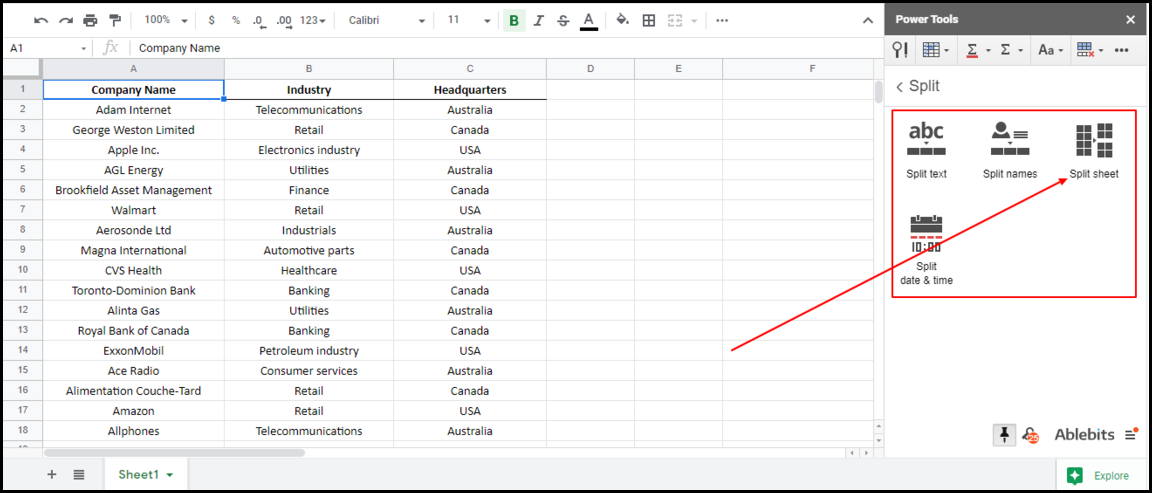
Once Power Tools is installed for the first time, a sidebar should appear on the right side of your sheet. If the sidebar doesn’t appear automatically, you can launch it via Add-ons > Power Tools > Start. After that, make sure you’re on Sheet1 and click on SPLIT in the Power Tools sidebar.

Power Tools Split Function in the Sidebar

Upon clicking, a set of options should appear, giving us various choices of how we want to split the data. In our case, we want to split an entire sheet so that’s what we’re going to select.

Power Tools Split Sheet option

Now the only thing that’s left is to specify the criteria by which we wish to split our data and the destination of the split sheets.

Settings for Power Tools Split Sheets

We get this as the output once we click on “Split”:

The resultant split rows

The entries have been separated into 3 tabs automatically. If we had 20 or 50 tabs, that’s the number of tabs that would appear.

Disclosure: This is an independently owned website that sometimes receives compensation from the company's mentioned products. Prolific Oaktree tests each product, and any opinions expressed here are our own.