If you are having trouble fitting text into a particular cell, or if you want a cleaner, easier method to show larger pieces of text, inserting a text box into your spreadsheet is a good solution. In our post about using text boxes in spreadsheets, we see how many steps there are to inserting text if you do not use a text box. The steps for inserting text using a text box are simple.
Click on the Insert Ribbon
and then click on Text Box.
In the editing window, click where you want the upper left hand corner of the box. While holding down the left button, drag down and to the right until the box is the size and shape you would like. You are now ready to type as the cursor is already in the box waiting for you.
You can style the text by right clicking on the text the same way in which you would format other text. In order to make the text box stand out, you can also right-click on the border of the box to change the weight of the border, the color, and the fill of the background.
Disclosure: This is an independently owned website that sometimes receives compensation from the company's mentioned products. Prolific Oaktree tests each product, and any opinions expressed here are our own.
Alternative to merging cells and wrapping text when using spreadsheets
Text boxes are used for large blocks of text in a spreadsheet. One of the limitations of a spreadsheet is the clunkiness of inserting large pieces of text without interrupting the visual flow of the data. The quickest way to insert text is to just type directly into a cell. However, this presents several problems.
Too big for a cell
Inevitably, if you are typing more than a word or two, the content will flow out of the cell. Visually, it will overlap the cell(s) to the right but the data won’t actually be in those other cells. Because of this, if you add something into the cell that it is overlapping, the new content will appear over the text that you originally typed.
Merge cells
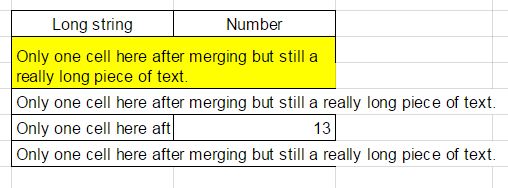
To work around this problem, one method is to merge the cells in which you want to display the text.
Now the text in yellow resides in only one cell. This can be helpful since there is no longer a chance that data will overlap it. However, you lose the option of using the cell to the right. This can break the flow of the spreadsheet if you needed that cell. For longer strings of data, you can merge columns and rows of cells.
Text longer than two cells
In the image above, an even longer piece of text has been inserted. This one overlaps more than one cell. We are back to the same problem.
After merging rows and columns
As you can see in the images above, when you merge a cell into different cells that live in different columns and rows, spreadsheets think that you still want the data to extend outside of the cell even if there is room inside of it.
Next, you have to apply wrap text
Wrap text applied to the cell
What a pain! As you can see, this are way too many steps for such a simple outcome. Even worse, if you add lines of text to the cell, you will have to merge it again with neighboring cells. Stop the insanity!!!
There are advantages and disadvantages to both. Read on to see seven key features compared between the two programs.
Split views
Excel’s Split lets you see different areas of the same worksheet in one window at the same time. You can scroll in each view independent of the other views. No new windows are open. The worksheet will have dividing lines showing the split which can be vertical, horizontal, or both.
Excel worksheet with a split view. Note the selected cell showing twice.
Sheets – Nada! No comparable option.
Video Explaining Differences
Use two windows
In Excel, you need to click New Window then Arrange All. At this point, you choose if you want to see them arranged vertically or horizontally. Each window gets its own set of scroll bars and the different views can be on separate worksheets within the workbook. This is an advantage over Split which only works on one worksheet (tab) at a time. However, the disadvantage is that it is a little more clunky to deal with two windows if you don’t need them.
Two windows looking at different worksheets in the same workbook
Sheets will allow you to see the same spreadsheet in two windows, but it is a work-around that is not obvious. You have to open Google Sheets in an additional tab on your browser, move that tab into its own window, then line up the two windows next to each other. Once you get this done, things work pretty well.
Sheets in two browser windows
Symbols
Microsoft has a robust set of special characters that can be used in your document. You find them in the Insert ribbon under Symbols.
small portion of the special characters available inside Excel
If you are using Google Sheets though, you must use an add-on like this.
Clear
Excel offers a function that, at first, seems redundant. The Clear function enables a user to remove everything from selected cells. Where this comes in handy is when a cell has multiple attributes that need to be removed. If you are using a spreadsheet with just raw data, this may not matter. But if you have cells with highlighting, custom borders, data in the cell, conditional formatting, etc, Clear All gets rid of everything in one click.
drop down menu for Excel’s clear function
In Sheets, you would have to remove each attribute separately. So, if there was a cell with yellow highlighting, iitalic font, and a number you would have to remove each item with separate clicks in Sheets.
Double bottom border
Different border types can help to further explain totals in a spreadsheet. Using Excel, a user can show a subtotal, then a total by using a single and a double underline.
Excel offers the double underline which Sheets is missing
In Google Sheets, the double underline is not available. [Double underline is available now after a 2017 update]. This means that the user may have to rearrange the data to make the same point or do a work around.
Easier printing
You can customize the printing of an Excel worksheet just about any way you can think of. You can use page break preview, you can set headers and footers, and move page breaks manually.
None of these options are available in Google Sheets. Printing in Sheets was improved in an April 2018 update and now many of the options from Excel are available in Sheets.
Filter by highlight
Excel introduced filtering by highlight in the 2007 version of its product. If all of your important information has been highlighted, then it only makes sense that you may want to be able to quickly bring all of the information to the top of your spreadsheet.
Excel can sort by the color of a cell’s highlighting
Apparently, the makers of Google Sheets do not agree! As of this writing, there is no way that this can be done.
Google has a feature for their spreadsheets that allows you to protect a cell or range of cells from being edited. The protection is granular and can be customized to the point where you can choose exactly who can and cannot access cells. The embedded video at the end of this post shows how to do this. Here are the steps.
Highlight the cells or range of cells that you want to protect
Right-click and choose “Protect range…”
Video explanation
After choosing Protect range, you have the option of naming the range or you can leave it as is. Note that you can also protect an entire Sheet (or Tab) from this dialog box as well. In the screen shot below, I will name the range Management Only to denote that only the people that boss you around are allowed to modify these cells.
Use the dialog on the right hand side of your screen to adjust the specifics.
Specify a cell or range of cells here, give it a name, and decide who can and who cannot have access.
Note that you can only set permissions for specific users if they have already been invited to view the spreadsheet before you perform this function.