They are many reasons why you may want to inserts a YouTube Video link into your Google Doc but there is no menu option for doing this. Following is a series of steps that will allow you to create a link to a YouTube video in your document complete with a clickable thumbnail. To the reader of the document, this will be an obvious YouTube link that looks like one from the web. When clicked, it will bring the reader to the video.
These steps give you a clickable thumbnail, but they will not embed the player into your document.
Screen clip
Start by finding the video that you want on YouTube. Once you have found the video, use the Snipping Tool built into windows and grab a screen clip of the video thumbnail.
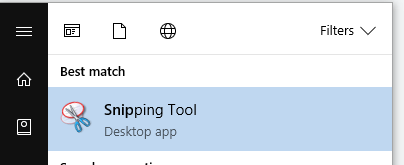
Snipping Tool in the Start menu
To find the Snipping Tool hit your Start button and type “Snip”. Press enter once it is highlighted.
Save the snip to your computer.
Video explanation which is actually a video!
Insert the images
Go back to your Google Doc and place your cursor where you would like to insert the video. Go to Insert and then Drawing.
Insert drawing option
While you are in the insert drawing window, you will be inserting two images.
Insert image option
For the first image, use the upload option and choose the screenshot that you just took with the Snipping Tool.
Upload an image
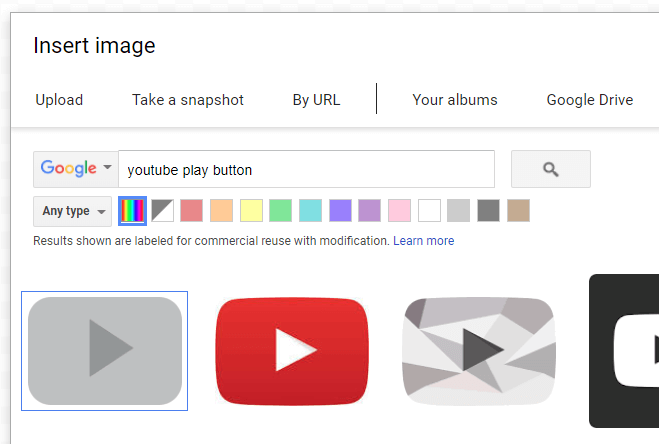
After inserting your screen shot file, go back to Insert image, then More, and choose search. Search for “YouTube Play Button” and choose which one you would like.
Search for a YouTube button
All ready
Shrink this button and move it over the middle of the screen shot. Your drawing is now ready. You have a thumbnail pictures of your YouTube video that will take you directly to the YouTube video page with it ready to play.
Finished YouTube thumbnail image
Follow image below for the live Google Doc with a YouTube link
If you’re using Gmail and you’ve received an email with more than one file attached to it, it can time consuming to download them. This article will show an easy way to download them all at once, saving you all of the extra steps.
Gmail message with multiple attachments
You can download each attachment separately by hovering over the thumbnail and clicking the download icon but this can take a long time. There is a lot of repeated steps if you do it this way.
Download them one at a time
However, if you move your cursor to the upper right hand corner of the attachments and hover over the icon as shown in the next picture below, instead of downloading one attachment, this gives you the option to download all of the attachments at once.
Download all attachments at once
Video explanation
The file that is downloaded will be a Zip file which is one compressed file with all of the downloads compressed inside of it.
The zip file with the attachments in it
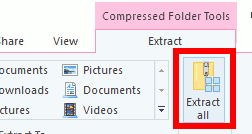
To open the Zip file using Windows 10, double click on the file then click the button that says “extract” on it. Click it and do extract all.
Extract all of the files
This will extract all of the attachments whether there were two or twenty saving you time for other things in your life!
Which chart type you use depends on what type of data you have and what story you want to tell with it. Google Sheets offers many types of charts. Picking the chart that is most appropriate for each situation can make the difference between someone understanding your data or just being more confused.
What are you trying to show?
Relationship
How do two or three variables compare to each other?
You are tyring to contrast two or more variables in relation to each other. Imagine that you have a long list of variables and you want to see how they relate to each other. Do they move in unison? Is there a close correlation between the values?
Among items
Over time
Distribution
You want to show where the data falls when aggregated together.
A scatter chart (AKA scatter plot or XY graph) uses points along a two-dimensional graph to show the relationship between two sets of data. Its simplicity can make it quite effective at cutting through the noise of large amounts of data in a Google spreadsheet. Once you can see the relationship, it can be used to predict future outcomes within certain confidence levels.
When to use a scatter chart
Before you jump into using a scatter chart, be sure that it is the right type of chart for you. This chart type decision tool can help you decide.
As an example, if you want to see if more people will use the water park as it gets warmer, a scatter chart could be a good tool. If you use any more than two variables, the chart can start to appear confusing and thus reduce its usefulness.
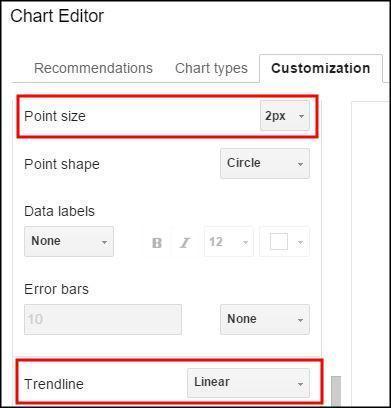
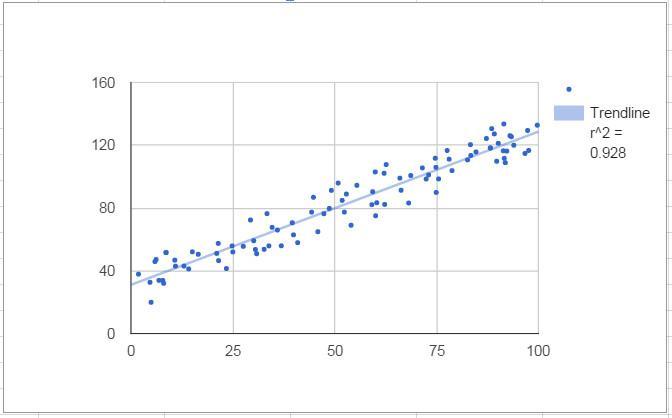
These charts can be customized in many ways. The first example below has had its points reduced to 2 px, a linear trendline added, and the correlation shown in the upper right hand corner of the chart. These options can be found on the customize menu when inserting a chart.
Customization menuExample scatter chart
Video Explanation
Correlation
Mathematically speaking, creating a scatter chart lets you visualize the correlation between data points, if there is any. In the example above, the correlation is .928, with the highest value of any correlation being 1. The chart was created in Google Sheets using random values for the Y axis and (Y + random values) for the X axis. The random value range was kept small so that it would create a tight correlation. Most users for which a spreadsheet chart is made will probably not remember what a correlation value means. A trendline is the layman’s tool for seeing the correlation.
Trendline
You can draw a line through the data along the path which is the best fit based on the points already on the chart. You can see how close the correlation is to 1 or negative 1 by simply looking at the distance that the dots are away from the line. This line can be used to extrapolate correlations outside of the current data. If you are trying to find data points inside the current set, it is called interpolation. This line can be straight (linear), or it can be a curve (exponential or polynomial).
You can choose from several types of trendlines
Linear
Below is a simple scatter chart with a correlation value of 1. This means that each of the two variables move in lock step with eachother in the same direction. If the left shoes size increases by one, so does the right. The line of best fit with a perfect correlation is linear and extends 45 degrees from left to right. Note that it will only be 45 degrees on the chart if the scale of the x and y axis are the same scale.
Scatter chart with correlation value of 1
Some types of data could have a negative correlation. For example, the relationship between BTU’s needed to heat a room and the outside temperature would create a graph that slants down as it moves along the x axis.
Scatter chart with correlation value of -1
Of course, not all data are so highly correlated. If it were, there would be no “scatter” in a scatter chart. This chart shows data with a correlation between -1 and 1. Note that the slope calculation and correlation value were included in the chart by choosing “Use Equation” as the label and placing a checkmark next to R2 to the correlation in the customization are of the chart menu.
Setting labels for trendlines
Scatter chart with correlation value shown on chart
Exponential
Exponential trendlines are a good fit for data that increase or decreases at a constantly increasingn rate.
Scatter chart with an exponential trendline
Polynomial
A polynomal trendline should be used when data flucuates between values. Note that the polynomial trenline is more tightly correlated with this data. The data is the same as the data used for the exponential trendline.
Scatter chart with a polynomial trendline
Error Bars
To illstrate that your data in not precise and may be within a certain range, error bars can be used. These bars are found in the customization menu and be set for different ranges in percentage or absolute terms. The chart below shows error bars added to a simple scatter chart to show uncertainty in the data. They were created by using a constant value of 2.25. These can be used with our without a trendline depending on the point that you are trying to make to the viewer of your chart.
Lots of spreadsheet users can’t imagine life without their double underline feature. There has been much gnashing of teeth for those making the switch to Google Sheets when they find that their faithful double underline function is not there. This is one of the few ways in which Sheets is inferior to Excel. What is one to do? Before you abandon ship, you should realize that there are a few decent work arounds for the issues. None of them are perfect, but you should be able to get the effect that you are looking for.
Update – As of late February 2017, a double underline is available in Google sheets without needing to use any workarounds.
Double underline option
The remainder of this article is preserved just in case you want to know how hard we had it way back when!
Bottom border and underline
The first option is to use a single bottom border on a cell and then use the underline font style. As you can see, this does creates two lines, but the top line is only as wide as the characters in the cell. Therefore, it won’t really look like a true double underline.
Single underline with an underline font format
Watch the video
Underscores and strikethrough
The next option is to type use insert a line of underscores (to the right of the zero hold down shift) in a cell and then apply the strikethrough font style. This will create a double line. The disadvantage of this technique though is that it will be a fixed width. Therefore, if the width of the cell changes, this “underline” will not be the right size anymore.
Underscores with the strikethroughUnderscores after column width changes
Two single bottom borders
The next option is to use the single bottom border on two rows and then shrink the row height to make it look like a double underline. In my opinion, this is most likely going to be your best bet.
Two bottom bordersTwo bottom borders with a shortened row